Key Takeaways
- TTFB (Time to First Byte) measures how fast your server responds — under 200ms is good, under 800ms is the Core Web Vitals threshold
- WordPress TTFB is slow because of PHP execution, uncached database queries, and bloated plugins running on every request
- Page caching is the single biggest TTFB fix — it eliminates PHP and database processing entirely
- Object caching with Redis reduces TTFB for dynamic pages, logged-in users, and WooCommerce carts
- Edge caching via Cloudflare APO can reduce TTFB to under 50ms globally by serving HTML from CDN edge nodes
What is TTFB and why it matters for WordPress
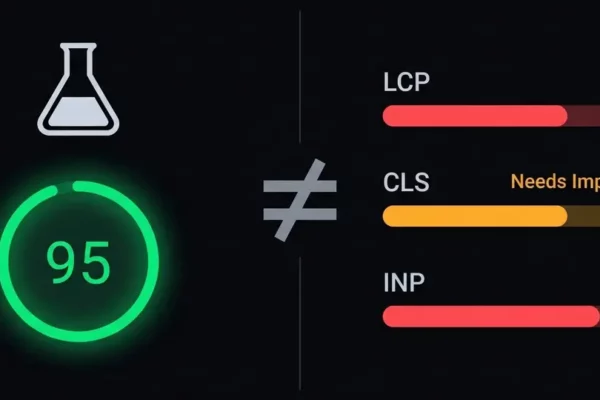
Time to First Byte measures the delay between a browser requesting your page and receiving the first byte of the response. It’s the starting gun for every other performance metric. If your TTFB is slow, your LCP will be slow, your INP will suffer, and your visitors will leave before the page even starts rendering.
Google considers TTFB a diagnostic metric rather than a Core Web Vital itself, but it directly impacts LCP — which is a ranking signal. In practice, we’ve never seen a WordPress site with TTFB over 600ms achieve good LCP scores. As we cover in our complete Core Web Vitals guide, server response time is the foundation everything else builds on.
The thresholds are: under 200ms is fast, 200–800ms is moderate, and over 800ms is slow. For WordPress specifically, an uncached page load on shared hosting typically produces TTFB of 1–3 seconds. That’s before a single image, stylesheet, or script has loaded. You’re already past the LCP budget before the browser even has HTML to parse.
Why WordPress TTFB is slow by default
WordPress is a dynamic CMS. Every page request triggers a PHP process that queries a MySQL database, assembles HTML from templates, runs plugin hooks, and returns the response. That processing chain is inherently slower than serving a static file.
The main bottlenecks:
- PHP execution — WordPress core loads dozens of files, initialises plugins, applies filters, and runs template logic on every single request. Even a minimal installation executes thousands of PHP function calls per page load.
- Database queries — A typical WordPress page generates 30–100 database queries. Post content, metadata, options, menus, sidebars, widgets — each requires a round-trip to MySQL. Bloated sites with many plugins can hit 300+ queries per request.
- Plugin overhead — Every active plugin adds PHP execution time. Some plugins load their logic on every page regardless of whether they’re needed. We’ve measured individual plugins adding 200–500ms to TTFB. For a detailed breakdown, see our guide on why WordPress sites are slow.
- Theme complexity — Page builders like Elementor and Divi generate deeply nested HTML with complex shortcode processing. This server-side rendering adds significant TTFB overhead.
- External API calls — Some plugins and themes make HTTP requests to external services during page generation. A single slow API call can add seconds to your TTFB.
The cumulative effect is devastating. We’ve audited WordPress sites where TTFB alone was 3–4 seconds on shared hosting. No amount of image optimisation or JavaScript deferral can compensate for a server that takes 3 seconds to start responding.
How to measure WordPress TTFB accurately
Before fixing TTFB, you need reliable measurements. Here’s how to test properly.

Chrome DevTools — Open DevTools (F12), go to the Network tab, reload the page, and click the first HTML document request. The “Waiting for server response” metric in the Timing tab is your TTFB. Make sure you’re testing in an incognito window with no extensions.
WebPageTest — Run a test from webpagetest.org with a server location close to your target audience. The “First Byte” metric in the waterfall is TTFB. Test multiple times — single tests are unreliable. Our WordPress speed testing guide covers this methodology in detail.
CrUX data — For field TTFB, check PageSpeed Insights or the Chrome UX Report. This shows real-user TTFB from actual visitors, which is what Google uses to evaluate your site.
Critical testing rules:
- Test uncached first — Append a random query string (?nocache=123) to bypass page caching and see your true server response time
- Test cached second — Load the page normally to verify your caching is working
- Test from multiple locations — TTFB varies by geographic distance from your server
- Test logged-in vs logged-out — WordPress typically bypasses page cache for logged-in users
Page caching: The single biggest TTFB fix
Page caching is the most impactful single change you can make to WordPress TTFB. It eliminates PHP execution and database queries entirely by storing a static HTML copy of each page and serving it directly.

Without caching, every page request runs the full WordPress stack: load WordPress core → initialise plugins → query database → execute template → return HTML. With page caching, the flow becomes: receive request → serve cached HTML file. The difference is typically 80–95% faster TTFB.
The main caching approaches:
Plugin-based caching — WP Super Cache, W3 Total Cache, WP Rocket, and Breeze generate static HTML files stored on disk. When a cached page exists, the web server (Nginx or Apache) serves it without loading PHP at all. This typically reduces TTFB from 1–2 seconds to 100–300ms.
Server-level caching — Nginx FastCGI cache or Varnish cache HTML in memory rather than on disk. Memory-based caching is faster than disk-based, typically achieving TTFB of 10–50ms. Most managed WordPress hosts use this approach. For a complete breakdown, see our WordPress caching guide.
Full-page edge caching — Cloudflare APO and similar services cache your entire HTML page at CDN edge locations worldwide. This reduces TTFB to 20–50ms globally because the response comes from the nearest edge node, not your origin server. This is the gold standard for WordPress TTFB.
Caching considerations for dynamic sites:
- WooCommerce — Cart, checkout, and account pages can’t be page-cached. Use object caching for these. Product and category pages should be cached normally.
- Logged-in users — Most caching solutions bypass cache for logged-in users. If your site has many registered users (membership sites, forums), you need object caching for acceptable TTFB.
- Personalised content — If pages vary by user (recently viewed items, recommendations), use fragment caching or client-side personalisation to still cache the base page.
Object caching with Redis or Memcached
Page caching handles anonymous traffic. Object caching handles everything else — admin pages, logged-in experiences, AJAX requests, and WooCommerce dynamic pages.
WordPress has a built-in object cache that stores database query results in PHP memory during a single request. But the cache dies when the request ends. A persistent object cache (Redis or Memcached) keeps those query results in memory across requests, so the same database query doesn’t run twice.
The impact on TTFB depends on how database-heavy your pages are:
- WooCommerce stores — Redis typically reduces uncached page TTFB by 30–50%. Product pages with many variations, custom fields, and pricing rules benefit the most.
- Membership sites — Logged-in pages that can’t be page-cached see TTFB reductions of 40–60% with Redis. The options table alone (loaded on every request) is the biggest single benefit.
- High-traffic blogs — Less impact if you have good page caching, but admin performance improves dramatically.
Redis vs Memcached: Redis is the better choice for WordPress. It supports more data types, has persistence (survives restarts), and every managed WordPress host supports it. Memcached is simpler but offers no advantage over Redis for WordPress workloads.
Setup is straightforward: install Redis on your server, install the redis PHP extension, and add an object cache drop-in (redis-cache plugin or a custom object-cache.php). Most managed hosts like Cloudways, Kinsta, and WP Engine offer one-click Redis activation.
Hosting and server infrastructure
Your hosting environment sets the floor for TTFB. No amount of optimisation can overcome fundamentally slow infrastructure.
Shared hosting — Typical TTFB: 500ms–3 seconds. You’re sharing CPU, memory, and I/O with hundreds of other sites. Peak-time slowdowns are common. If your budget allows, move off shared hosting immediately. Our WordPress hosting comparison tests real TTFB across providers.
VPS / Cloud (DigitalOcean, Vultr, AWS Lightsail) — Typical TTFB: 200–800ms uncached, 20–100ms cached. Dedicated resources eliminate noisy-neighbour problems. Managed solutions like Cloudways add server-level caching and one-click optimisations.
Managed WordPress hosting (Kinsta, WP Engine, Flywheel) — Typical TTFB: 100–400ms uncached, 20–80ms cached. Optimised server stacks with Nginx, PHP-FPM, Redis, and server-level caching pre-configured. Premium pricing but minimal configuration needed.
PHP version matters — PHP 8.2/8.3 is 20–40% faster than PHP 7.4 for WordPress workloads. If your host still runs PHP 7.x, upgrading is a free TTFB improvement. Check compatibility with your plugins first, but most actively maintained plugins support PHP 8.x.
Server location — A server in London adds 200–300ms of network latency for Australian visitors. Choose a server location close to your primary audience, then use a CDN to serve cached content globally. This is where edge caching becomes essential.
Database optimisation for faster TTFB
A bloated WordPress database directly increases TTFB because every query takes longer when tables are large and fragmented.
Quick wins:
- Delete post revisions — WordPress stores every draft revision by default. Sites with years of content can have 50,000+ revisions. Limit revisions with
define('WP_POST_REVISIONS', 3);in wp-config.php and delete existing ones. See our database optimisation guide for the safe approach. - Clean autoloaded options — The wp_options table is loaded on every request. Deactivated plugins often leave behind autoloaded options. Query
SELECT SUM(LENGTH(option_value)) FROM wp_options WHERE autoload='yes'— if it’s over 1MB, you have a problem. - Optimise tables — Run
OPTIMIZE TABLEon wp_posts, wp_postmeta, and wp_options periodically. This reclaims space from deleted rows and defragments indexes. - Delete transients — Expired transients accumulate in wp_options. Run
DELETE FROM wp_options WHERE option_name LIKE '%_transient_%' AND option_value < UNIX_TIMESTAMP()periodically or use WP-CLI:wp transient delete --expired. - Add missing indexes — The wp_postmeta and wp_usermeta tables lack a compound index on (post_id, meta_key). Adding it can dramatically speed up meta queries on large sites.
Reducing plugin TTFB overhead
Plugins are the hidden TTFB killer in WordPress. Each plugin hooks into WordPress's execution chain, and many load their full codebase on every single page request regardless of whether their functionality is needed.
Audit plugin impact — Use Query Monitor to see exactly how much TTFB each plugin adds. The "Queries by Component" and "HTTP API Calls" panels reveal the worst offenders. Any plugin adding more than 50ms of server time deserves scrutiny.
Remove what you don't need — The fastest plugin is one that isn't installed. Audit your active plugins quarterly. Common offenders we see on client sites:
- Social sharing plugins that make API calls to count shares on every page load
- SEO plugins with excessive background processing (some run analysis on every save)
- Analytics plugins that process data server-side instead of client-side
- Contact form plugins loaded on every page when forms only exist on one page
- Slider and gallery plugins that load heavy PHP processing for layout computation
Conditional loading — Plugins like Asset CleanUp and Perfmatters let you disable specific plugins on pages where they're not needed. A contact form plugin shouldn't load on blog posts. A WooCommerce plugin shouldn't load on your About page. This approach can reduce TTFB by 100–300ms on affected pages. For more server-level approaches, see our guide on speeding up WordPress without plugins.
Replace with code — Many lightweight functions don't need a full plugin. Custom post type registration, simple shortcodes, and basic analytics snippets can be added via your theme's functions.php or a custom plugin with minimal overhead.
Advanced TTFB optimisation techniques
Once you've handled caching, hosting, and plugins, these advanced techniques squeeze out the remaining milliseconds:
Early hints (103) — HTTP 103 Early Hints lets the server tell the browser to start loading critical resources before the full response is ready. Cloudflare supports this automatically for assets it detects as critical. It doesn't reduce TTFB itself but eliminates wasted waiting time during the server think-time.
PHP OPcache tuning — OPcache stores precompiled PHP bytecode in memory so PHP doesn't recompile files on every request. Ensure it's enabled and properly sized: opcache.memory_consumption=256, opcache.max_accelerated_files=20000, opcache.revalidate_freq=60. Misconfigured OPcache is a common cause of inconsistent TTFB spikes.
Disable WP-Cron — WordPress runs wp-cron.php on every page request to check for scheduled tasks. Disable it with define('DISABLE_WP_CRON', true); and set up a real server cron job: */5 * * * * cd /path/to/wp && php wp-cron.php. This eliminates a random TTFB penalty on unlucky requests.
Persistent database connections — By default, WordPress opens and closes a MySQL connection on every request. Persistent connections reuse existing connections, saving 10–30ms per request. Add to wp-config.php: define('MYSQL_CLIENT_FLAGS', MYSQLI_CLIENT_FOUND_ROWS); — but test carefully as some hosts don't support it.
Application-level profiling — For sites with complex custom code, use tools like Blackfire.io or New Relic to identify slow PHP functions and database queries. We've found single custom queries taking 500ms+ that the developer never noticed because they only triggered on specific pages.
Frequently asked questions
What is a good TTFB for WordPress?
Under 200ms is excellent, under 400ms is good, and under 800ms is acceptable. For cached pages, aim for under 100ms. With edge caching (Cloudflare APO), you can achieve under 50ms globally. If your uncached TTFB is over 1 second, your hosting or WordPress configuration needs attention.
Does TTFB affect SEO rankings?
TTFB is not a direct ranking factor, but it directly impacts LCP which is a Core Web Vital and a confirmed ranking signal. Slow TTFB also reduces crawl efficiency — Googlebot has a time-based crawl budget and slow responses mean fewer pages crawled per session. Read more about the SEO impact of Core Web Vitals.
Why is my cached WordPress TTFB still slow?
Common causes: your caching plugin isn't actually serving cached pages (check response headers for X-Cache: HIT), your server is geographically distant from your visitors (use a CDN), your SSL handshake is slow (enable TLS 1.3 and OCSP stapling), or Cloudflare is configured incorrectly. Test with curl -I to check cache headers and verify caching is working.
Is TTFB the same as server response time?
They're related but not identical. TTFB includes three components: DNS lookup time, TCP connection time, and server processing time (also called "server response time"). Server response time is just the processing portion. When people say "TTFB," they usually mean the full metric including network latency, which is what Google measures.
Should I use Redis or page caching for WordPress?
Both — they solve different problems. Page caching stores complete HTML pages and serves them without running PHP, which gives the biggest TTFB improvement for anonymous visitors. Redis (object caching) stores database query results in memory, improving performance for logged-in users, admin pages, and dynamic content that can't be page-cached. For best results, use page caching + Redis + Cloudflare edge caching together.

TTFB still over 400ms?
We'll fix your server response time
Our free audit measures your real TTFB, identifies the bottleneck, and we fix it. Caching, hosting, database — whatever it takes. Score guarantee: 90+ or you don't pay.