Key Takeaways
- Core Web Vitals change constantly — plugin updates, new content, third-party scripts, and hosting changes can cause regressions at any time
- Google Search Console’s CWV report is the primary free monitoring tool — it shows URL-level assessments using real field data
- Set up automated alerts so you catch regressions within days, not after rankings have already dropped
- Real User Monitoring (RUM) gives granular, real-time data that CrUX’s 28-day rolling window can’t provide
- Monitor after every deployment: theme updates, plugin updates, and content changes are the three most common regression triggers
Why CWV monitoring matters for WordPress
Optimising Core Web Vitals is not a one-time task. WordPress sites are dynamic — plugins update, themes change, content gets added, third-party scripts evolve, and hosting environments shift. Any of these can degrade your LCP, CLS, or INP without warning.
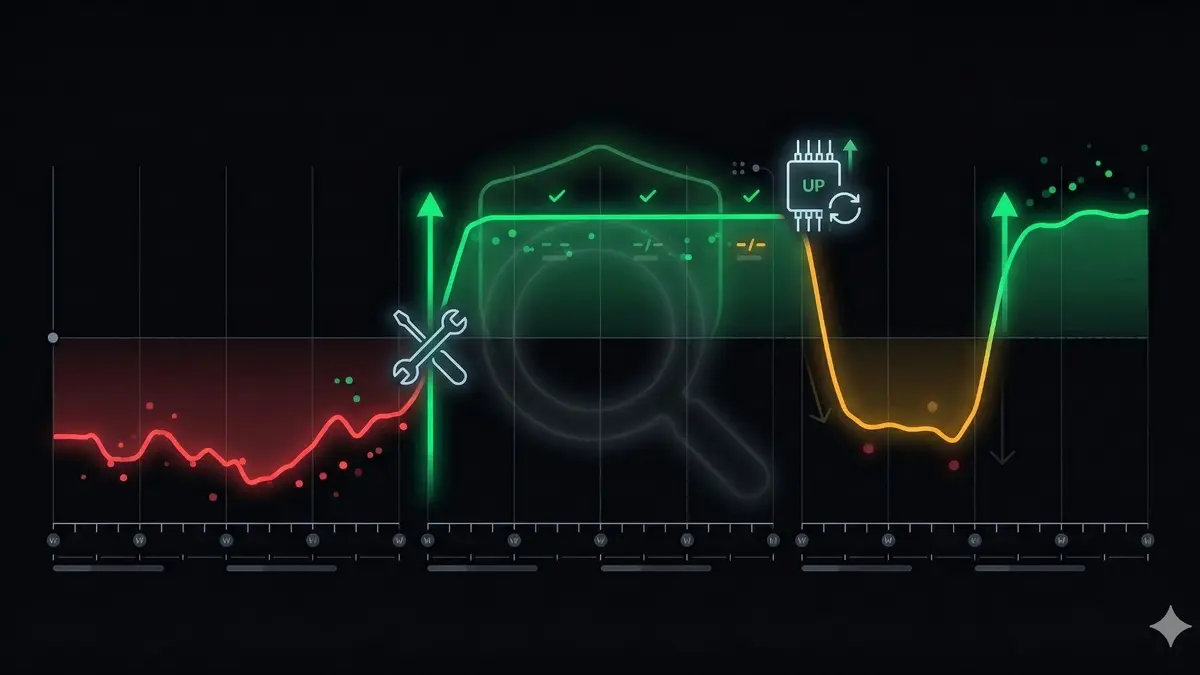
We’ve seen sites go from passing all three Core Web Vitals to failing within a single week after a plugin update introduced a render-blocking script. Without monitoring, the regression went unnoticed for two months — long enough for the SEO impact to materialise as a rankings drop. By the time the site owner noticed the traffic decline, the 28-day CrUX window had locked in the poor data.
The monitoring strategy has three layers: free tools that everyone should use, automated alerting for proactive detection, and real user monitoring for sites where CWV is business-critical.
Google Search Console Core Web Vitals report
Search Console’s Core Web Vitals report is your primary monitoring tool. It’s free, uses the same CrUX data Google uses for rankings, and groups your URLs by CWV status.
What it shows:
- URLs grouped into Good, Needs Improvement, and Poor for both mobile and desktop
- Which specific metric is failing for each URL group
- Trend data showing whether your CWV is improving or degrading over time
- URL-level detail when you click into a group
How to use it effectively:
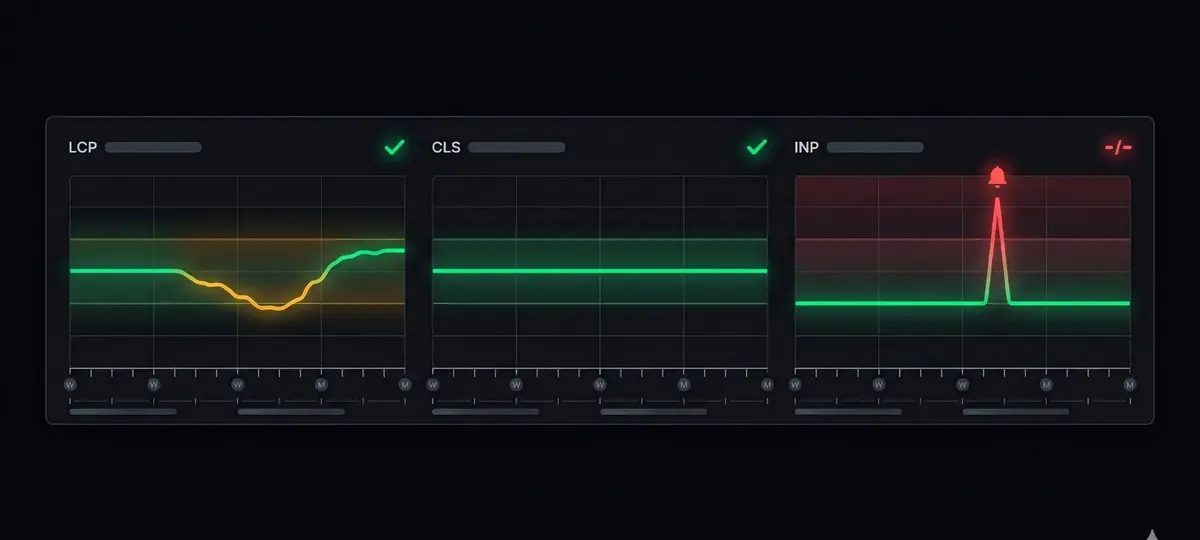
Check the report weekly. Look at the trend lines, not just the current status. A gradual increase in “Needs Improvement” URLs is an early warning — catch it before URLs cross into “Poor” territory. The report updates every few days as CrUX data refreshes.
When you see a regression, click into the affected URL group to identify which metric failed. Then use lab testing tools to diagnose the specific cause. The field data tells you there’s a problem; lab tools tell you what the problem is.
Limitation: Search Console only reports on URLs with sufficient CrUX data. Low-traffic pages won’t appear. There’s also a 28-day lag — by the time a regression shows up, it’s been affecting users for weeks. This is why you need additional monitoring layers.
Scheduled PageSpeed Insights testing
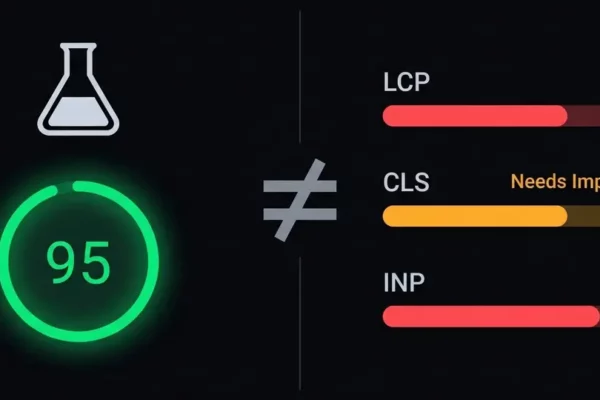
While PageSpeed scores differ from CWV field data, scheduled lab tests catch regressions faster than waiting for CrUX updates.
Free approach — Google Sheets + PageSpeed API:
The PageSpeed Insights API is free (with rate limits). Set up a Google Sheet with Apps Script that tests your critical URLs daily and logs the results. Monitor LCP, CLS, and TBT (the lab proxy for INP) values over time. A sudden spike in any metric after a deployment signals a regression.
Key URLs to monitor:
- Homepage — Your highest-traffic page and first impression
- Top 5 organic landing pages — Where most search traffic arrives
- Blog index — Aggregates performance of your post listing
- A WooCommerce product page (if applicable) — Dynamic pages with the most complex rendering
- Contact/conversion pages — Where business outcomes happen
Don’t test every page — test representative pages from each template type. If your single.php template regresses, all blog posts will be affected. Testing one blog post catches problems for all of them.
Paid tools: SpeedCurve, Calibre, and DebugBear offer automated Lighthouse testing with historical graphs, alerts, and budget thresholds. These are valuable for agencies and e-commerce sites but overkill for most WordPress blogs. The free approach covers 80% of monitoring needs.
Real User Monitoring (RUM)
RUM collects Core Web Vitals data from every real visitor in real time. Unlike CrUX (which aggregates over 28 days) or Lighthouse (which tests synthetically), RUM gives you granular, immediate data segmented by page, device, geography, and connection type.
When you need RUM:
- E-commerce sites where CWV directly impacts revenue
- Sites with diverse global audiences (different CWV experiences by region)
- After major site changes where you can’t wait 28 days for CrUX confirmation
- When debugging CWV issues that only affect specific user segments
Web-vitals JavaScript library: Google’s web-vitals library is the foundation for all CWV RUM. It measures LCP, CLS, and INP using the same APIs that CrUX uses. Add it to your WordPress site and send data to your analytics platform:
import {onLCP, onCLS, onINP} from 'web-vitals';

function sendToAnalytics(metric) {
  const body = JSON.stringify({
    name: metric.name,
    value: metric.value,
    delta: metric.delta,
    id: metric.id,
    page: window.location.pathname,
  });
  navigator.sendBeacon('/analytics', body);
}

onLCP(sendToAnalytics);
onCLS(sendToAnalytics);
onINP(sendToAnalytics);
Google Analytics 4: GA4 collects Core Web Vitals automatically if you’re using gtag.js or Google Tag Manager with the web-vitals integration. Check the “Web Vitals” report under User Experience. The data is less granular than custom RUM but requires zero additional setup.
Cloudflare Web Analytics: If you’re using Cloudflare (which we recommend for all WordPress sites), their free Web Analytics product includes Core Web Vitals measurement. It’s lightweight, privacy-friendly, and requires only adding a small JS snippet.
Common CWV regression triggers in WordPress
Knowing what causes regressions helps you monitor at the right moments.
Plugin updates: The most common trigger. A caching plugin update that changes its output strategy, a form plugin that adds a new script, or an SEO plugin that modifies how schemas render — any of these can affect CWV. Monitor immediately after every plugin update. Use the right plugin stack to minimise the number of plugins that can cause regressions.
Theme updates: Theme updates can change CSS loading, JavaScript structure, HTML output, and image handling. If you’re using a commercial theme, major version updates are particularly risky. Test CWV on a staging environment before updating the live site.
New third-party scripts: Adding a chat widget, analytics tool, A/B testing script, or ad network introduces JavaScript that you don’t control. These scripts often load synchronously, block the main thread, and cause layout shifts. Even “async” third-party scripts can degrade INP by competing for main thread time during user interactions.
Content changes: Adding a new hero image without proper dimensions causes CLS. Embedding a video without placeholder dimensions causes CLS. Adding a large above-the-fold image without preloading degrades LCP. Content editors often don’t know about CWV implications — build guardrails into your content workflow.
Hosting changes: Server migrations, PHP version changes, CDN configuration updates, SSL certificate renewals, and Varnish/Redis restarts can all affect TTFB and therefore LCP. Monitor TTFB specifically after any hosting-level change.
WordPress core updates: WordPress core updates occasionally affect performance. The lazy loading changes in WordPress 5.5 and 5.9, the block editor performance updates, and jQuery migration changes have all caused CWV regressions on specific sites.
A practical monitoring workflow
Here’s the monitoring workflow we implement for every VeloPress client:

Daily (automated):
- Automated Lighthouse test on 5 representative URLs
- Log LCP, CLS, TBT values to a spreadsheet or dashboard
- Alert if any metric crosses a threshold (LCP > 2.0s, CLS > 0.08, TBT > 150ms — we use tighter thresholds than Google to catch regressions early)
Weekly:
- Check Google Search Console CWV report for status changes
- Review trend lines for gradual degradation
- Verify caching is working (spot-check response headers for X-Cache: HIT)
After every deployment:
- Run Lighthouse tests on affected page templates immediately
- Compare LCP, CLS, TBT against pre-deployment baselines
- Check that caching hasn’t been disrupted (a common side effect of deployments)
- If RUM is set up, monitor real-time data for the first 24 hours
Monthly:
- Full CWV audit on all page templates (homepage, single post, archive, product page, landing page)
- Review third-party script impact — have any new scripts been added?
- Check if image optimisation is keeping up with new content uploads
- Verify database performance hasn’t degraded
Setting up CWV alerts
Automated alerts turn monitoring from a manual chore into a safety net.
Search Console email alerts: Google Search Console sends email notifications when it detects CWV issues. Enable these in your Search Console settings. The alerts are somewhat slow (they follow the CrUX update cycle) but cover your entire site automatically.
Custom alerting with PageSpeed API: For faster detection, use the PageSpeed Insights API in a scheduled script (cron job, GitHub Action, or cloud function) that tests your critical URLs every 6 hours. If any metric exceeds your threshold, send an alert via email, Slack, or SMS. This catches regressions within hours instead of weeks.
Uptime monitoring with CWV: Tools like DebugBear combine uptime monitoring with CWV testing — if your site goes down or slows down, you get one alert covering both availability and performance.
Threshold recommendations: Set alert thresholds tighter than Google’s CWV boundaries to give yourself a buffer:
- LCP alert: > 2.0 seconds (Google threshold: 2.5s)
- CLS alert: > 0.08 (Google threshold: 0.1)
- TBT alert: > 150ms (Google’s INP threshold: 200ms)
- TTFB alert: > 400ms (not a CWV but the foundation for LCP)
This buffer means you get alerted while you still have time to fix the issue before it affects your CrUX data and rankings.
Frequently asked questions
How often should I check Core Web Vitals?
Automated daily lab tests plus weekly Search Console reviews is the minimum recommended cadence. Additionally, test immediately after every deployment (plugin updates, theme changes, content changes). For e-commerce sites, real-time RUM data is recommended. The goal is to catch regressions within 24 hours, not after 28 days when CrUX data updates.
What’s the best free CWV monitoring tool?
Google Search Console is the best free monitoring tool because it uses the same CrUX field data that Google uses for rankings. Supplement it with the free PageSpeed Insights API for faster regression detection (you can automate daily tests with Google Sheets and Apps Script). For RUM, Cloudflare Web Analytics is free and includes CWV measurement.
How quickly does CrUX data update after I fix a CWV issue?
CrUX uses a 28-day rolling window, so it takes approximately 28 days for your fix to be fully reflected in the data. In practice, you’ll start seeing gradual improvement within 1–2 weeks as new (good) data replaces old (bad) data in the rolling window. Search Console reports update every few days. Full ranking recovery after CWV fixes typically takes 6–10 weeks.
Can a single plugin update break Core Web Vitals?
Yes, absolutely. A caching plugin update that changes its output, a form plugin that adds a new render-blocking script, or a theme update that modifies image loading can all cause CWV regressions. This is why post-deployment testing is critical. Always test CWV on staging before applying updates to production, and run Lighthouse tests immediately after any plugin or theme update on the live site.
Do I need paid monitoring tools for Core Web Vitals?
For most WordPress sites, no. Google Search Console + the free PageSpeed Insights API covers the fundamentals. Paid tools like SpeedCurve, DebugBear, or Calibre add convenience features (historical dashboards, performance budgets, filmstrip comparisons) that are valuable for agencies and large e-commerce sites but aren’t necessary for typical WordPress blogs or business sites.

Need ongoing CWV monitoring?
We monitor and maintain your Core Web Vitals
Our optimisation service includes ongoing monitoring with alerts, monthly audits, and proactive regression fixes. Score guarantee: 90+ or you don’t pay.